Category: DevOps
GoCD: Versioning .Net Assemblies
I recently updated my versioning on my build server to help separate CI builds from builds that are being publicly distributed. My versioning scheme for CI builds looks like 5.4.4-239CI37380 following SemVer 2.0 this gives me Major.Minor.Patch-PreRelease. My PreRelease is the “Go Counter” + “CI” + “Source Revision Number”.
Unfortunately, assembly versions use a different scheme, Major.Minor.Build.Revision and are only allowed to have numbers and no dashes (AssemblyVersionAttribute). So, I ended up keeping the CI version for file names, but changed the assembly to just use the Major.Minor.Patch for the assembly Major.Minor.Build (you with me?). Then for to help identify different assemblies I added the Go Counter to the end.
The lesson is to only use numbers in your .Net assembly version numbers.
Deploying NuGet Packages Instead of Zips
I was on a project to improve an application deployment process that used zip files for packaging the applications. Zips are good. They allow you to package and compress files into one bit sized file, but there is so much more to be had with a dedicated package solution. Maven, gem, wheel, npm, cpan, rpm, deb, nuget, chocolatey, yum… the list goes on and with so many options to provide an improved package for deployment its hard to justify using plain old zips.
Since this was a .Net project I focused on NuGet. NuGet is itself a zip file, but a zip on steroids. Zip provides the compression and NuGet adds additional meta data and functionality.
- Standard package meta data and file layout.
- Versioning ala SemVer.org.
- Package manager to control install, upgrade, and uninstall.
- Dependency management.
- Having a package manage file deployment means you have a repeatable process as opposed to manual where one missed file can kill you. Also, when I deploy the same package multiple times the system is in the same state after each deployment, idempotent.
Enough of the sales pitch. Actually, one problem that I had with using NuGet alone was no easy way to validate the package through checksum. So, in addition to NuGet, using a dedicated artifact repository solution like Artifactory gives an added layer of comfort. A good paper, although biased, on Artifactory can be found here.
Happy Packaging!
Build Once, Deploy Everywhere
We were faced with an interesting problem. We want to build once and deploy the build to multiple environments for testing, staging and ultimately consumption in production. Well in addition to build once, we also want to allow remote debugging. We need to build in debug mode to get pdb generated and have other configurations that will allow debugging. Yet, we don’t want to deploy a debug build to staging or production. What do we do?
The thought right now is to do a debug build and create to packages, one for debug and one for release. To do this we would have to strip out the pdb and turn on debugging in the release package. So, we still have one build, but we have two flavors of packages.
I am not yet sure if this is viable, hence the reason I am blogging this out. First I need to fully understand the difference between a debug and release build in MSBuild. I have an idea, but I need to verify my assumptions.
Difference Between Debug and Release Build
What I have found is the main difference between debug and release building are:
- Debug build generates pdb files.
- Release build instructs the compiler to use JIT optimizations.
PDB files are symbol databases that allow a debugger to map machine code to source code (actually MSIL) so you can set break points in source code and the debugger can halt execution of the machine code. This is probably a terrible explanation, but you should get the gist.
JIT optimizations are things the compiler does to speed up the execution of your code. It may reorganize loops to make them run faster and other little magic tricks that happen under the cover that we usually never have to worry about.
Scott Hanselman has an interesting post on this, http://www.hanselman.com/blog/DebugVsReleaseTheBestOfBothWorlds.aspx. This posts suggest that you could do a release build and configure the runtime with an ini file that would determine if JIT optimizations are performed or tracking information is generated.
http://msdn.microsoft.com/en-us/library/9dd8z24x(v=vs.110).aspx this post explains more about the ini.
Now What?
After doing this research I learned a lot about building .Net code, but I also realized that I am taking this a little to far. My primary goal is that we build our application once and use that build in multiple environments to get it tested and deployed to production. When we need to do a remote debug we are using researching an issue and there is no reason that we couldn’t flip a switch on one particular build so that it builds in debug mode, deploy it to a test environment, debug it, make some fixes after finding the cause of the issue we are debugging, then flip the switch back to release and build again, this time allowing the build to go all the way to production.
Issues
The problem here is that we need to make sure that we do not allow debug builds to make it into production. My initial thought is to mark debug builds with a version that is tagged with DEBUG. Then I can have logic in the production deploy that checks for the DEBUG tag and fail the deploy if it is present. We can do the same for pdb files and web.config. Specifically, check for inclusion of pdb (we shouldn’t have pdb file in production). We can also have logic that checks for debug=true and other configurations that we don’t want leaking into production.
We would have to alter our deployment pipeline to add a job that will do these checks based on the environment being deployed. We would have to also look at maybe putting debug builds in a different artifact repository to keep them segregated from release candidates. This would also cause another change to the deployment pipeline where we check the release candidate or debug repository based on some setting.
Conclusion
This would be a lot of changing to our pipeline, but I believe it is worth it in the long run. It also prevents us from leaking manual processes into how we build and deploy the app.
GoCD: Automate Agent Install with PowerShell
I have been setting up build servers and I have been exploring automating the process. So, I have been scripting every step I take to stand the servers up. In this post I will sharing some of the commands I use to create GoCD Agents. If you decide to go down this road, you should think about creating reusable scripts and parameterize the things that change (I didn’t want to do all the work for your :). Also, it would make sense to use a configuration manager like DSC, Puppet or Chef to actually run the scripts.
I am using PowerShell remotely on the build servers, which is indicated by [winbuildserver1]: PS> in the command prompt. Check out my previous post to learn more about configuring remote servers with PowerShell.
Copy Install Files
The first thing I do is copy the install files from the artifact repository to the server.
[winbuildserver1]: Copy-Item -Path \\artifactserver\d$\repository\Go-Agent\go-agent-14.1.0-18882\go-agent-14.1.0-18882-setup.exe -Destination "D:\install-temp\" -Recurse -Force
Install Agent
[winbuildserver1]: PS>([WMICLASS]"Win32_Process").Create("D:\install-temp\go-agent-14.1.0-18882-setup.exe /S /SERVERIP=<ip of go server> /GO_AGENT_JAVA_HOME=<path to JRE> /D=D:\Go Agents\Internal\1\")
Here we are getting a reference to the static WMI class “Win32_Process”, call the create method passing the command line to install an agent (http://www.thoughtworks.com/products/docs/go/current/help/installing_go_agent.html). In the command line we have
- the path to the install file
- /S switch for silent install (no user prompts)
- /SERVERIP switch for the IP of the Go Server (this is optional)
- /GO_AGENT_JAVA_HOME switch for the path to the JRE (this is optional)
- /D switch is the path to location you want to install the agent.
Run Multiple Agents on Same Server
If I want to run multiple agents on the same server I do a little extra work to get the other agents installed.
[winbuildserver1]: PS> Copy-Item "D:\Go Agents\Internal\1\*" -Destination "D:\Go Agents\PCI\1"
[winbuildserver1]: PS> Remove-Item "D:\Go Agents\PCI\1\config\guid.txt"
[winbuildserver1]: PS> Remove-Item "D:\Go Agents\PCI\1\.agent-bootstrapper.running"
Here we are just copying an installed agent to a new location and removing a couple files to force the agent to recreate and register itself with the server.
Create Agent Service
Lastly, I create a service for the agent.
[winbuildserver1]: PS> New-Service -Name "Go Agent PCI 1" -Description "Go Agent PCI 1" -BinaryPathName "`"D:\Go Agents\PCI\1\cruisewrapper.exe`" -s `"D:\Go Agents\PCI\1\config\wrapper-agent.conf`""
Get more on using PowerShell to configure services in my previous post.
Conclusion
I use similar commands to install the server, plug-ins, and other tools and services (e.g. Git, SVN, NuGet…) that I need on the build server. I have to admit that this isn’t totally automated yet. I still have to manually update the service account, credentials and manually accept a certificate to get SVN working with the agent, but this got me 90% done. I don’t have to worry about my silly mistakes because the scripts will do most of the work for me.
GoCD: Environment Variables in Build Scripts
I wanted to use some of the GoCD Environment Variables in my build scripts, unfortunately finding info on how to do that was limited or my search skills lacking.
Anyway, to use a Pipeline Parameter you would tokenize the parameter like so:
#{ParameterName}
To use a GoCD Environment Variable you would tokenize the variable like this:
%VariableName%
GoCD: 404 Error Fetching Artifact [SOLVED]
Problem
[go] Could not fetch artifact https://127.0.0.1:8154/go/remoting/files/pne.test.build/127/Build/1/Build/cruise-output/PreTest.PreTest.nant.log.xml?sha1=8899RvS5mElcpqSju5FdfoYPUQU%3D. Pausing 19 seconds to retry. Error was : Unsuccessful response '404' from the server
This error stumped me for a while. The reason it stumped me is because of the IP addrdess and port, my Go Server is not located there. The Go Agent is not on the same server as the Go Server, so it shouldn’t be using a local IP. The agent configuration is properly pointed to the Go Server’s IP and port. I assumed that the 404 was because of the incorrect IP and port and I did a lot of research and digging trying to correct it.
Issue
I finally figured out that this error is simply stating that the file was not found.
Solution
I am not sure why the wrong IP and port is reported, but when the file in the error was added to the artifacts on the server, the error went away.
GoCD: Error updating Git material on Windows Server [SOLVED]
Problem
I have a Git material setup that uses a public git repository (private repos are another animal).
<materials>
  <git url="http://mydomain/MyRepo.git" materialName="myrepo.git" />
</materials>
When I trigger the pipeline that uses this material it results in an error.
[go] Start to prepare build/5/Build/1/Build on mygoserver [D:\Go Agents\Internal\1] at Fri Oct 24 08:44:49 EDT 2014
[go] Start updating files at revision b0b18a838a108a208003178fb17e8769edf9587c from
http://mydomain/MyRepo.git
Error while executing [git config remote.origin.url]
 Make sure this command can execute manually.
[go] Job completed build/5/Build/1/Build on mygoserver [D:\Go Agents\Internal\1] at Fri Oct 24 08:44:49 EDT 2014
Error
Looking at go-agent.log I see that there was a problem executing the git command.
…blah blah
2014-10-24 08:27:48,616 [loopThread] ERROR thoughtworks.go.work.DefaultGoPublisher:142 - Error while executing [git config remote.origin.url]
Make sure this command can execute manually.
java.lang.RuntimeException: Error while executing [git config remote.origin.url]
 Make sure this command can execute manually.
  …blah blah
Caused by: com.thoughtworks.go.util.command.CommandLineException: Error while executing [git config remote.origin.url]
 Make sure this command can execute manually.
  …blah blah
Caused by: java.io.IOException: Cannot run program "git" (in directory "pipelines\build"): CreateProcess error=2, The system cannot find the file specified
…blah blah
When I set the material up I got a successful test connection. So an error saying that it can’t find the git command is somewhat perplexing. Does the Git connection test use a different git than the pipeline material processor. When I installed msysgit I manually added the git bin folder to the PATH. I could run git in the command window and on git bash.
Solution
After some hair pulling I decided to re-install msysgit and this time to use the evil option that has the red danger sign.
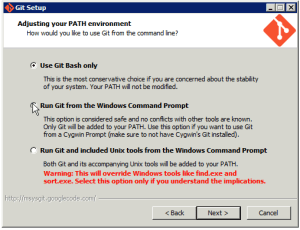
Notice that it says it will override Windows tools, like find.exe and sort.exe. Now, I have to remember that these tools are busted when the server ever has to run a script that needs these. I am not sure of any other changes, but it looks like it is a PATH change. Instead of just having {gitinstall}\bin it also adds {gitinstall}\cmd.
When I restart the Go Server and Agent and try again… IT WORKED!!!
Conclusion
If you are using a Windows Server with Go and you want to use Git Materials, you may need to allow git to override some of your Windows tools and remember that you allowed Git to break said tools when problems arise…and this will arise.
Microsoft Infrastructure as Code with PowerShell DSC
Desired State Configuration (DSC) is a PowerShell platform that provides resources that enable the ability to deploy, configure and manage Windows servers. When you run a DSC configured resource on a target system it will first check if the target matches the configured resource. If it doesn’t match it, it will make it so.
To use DSC you have to author DSC configurations and stage the configuration to make it available for use on target systems and decide whether you will pull or push to your target systems. DSC is installed out of the box with PowerShell (starting with 4.0). PowerShell is already installed in the default configuration of Windows Server 2012 so you don’t have to jump through any major hoops to get going.
DSC Resources
DSC Resources are modules that DSC uses to actually do work on the server. DSC comes with basic resources out the box, but the PowerShell team provides a DSC Resource Kit that provides a collection of useful, yet experimental, DSC Resources. The Resource Kit will simplify usage of DSC as you won’t have to create a ton of custom resources to configure your target systems.
http://gallery.technet.microsoft.com/DSC-Resource-Kit-All-c449312d
You can also create your own custom resources and it seems not too difficult to do. I even saw a post that suggests that you can code your resources with C#, I haven’t tried this, but it would be a plus if your not very comfortable with PowerShell.
http://blogs.msdn.com/b/powershell/archive/2014/05/29/wish-i-can-author-dsc-resource-in-c.aspx
There is a preview of a resource gallery here, https://msconfiggallery.cloudapp.net/packages?q=Tags%3A%22DSC%22. You can probably find additional resources produced by the community with a little searching.
Push or Pull
Do you push changes to the target system or allow the target to pull changes from a central server? This is a debate with merits on both sides where opponents advocate for one or the other. I have seen arguments on both sides that state the scalability and maintainability benefits of one over the other. My opinion is I don’t really care right now (premature optimization).
One of the first DSC posts I read on TechNet said that Pull will most likely be the preferred method so I went with it, although there is more setup you have to go through to get going with pull. Push is basically a one line command. In the end, the decision is yours as you can do both, just don’t lose any sleep trying to pick one over the other. Pick one, learn how DSC works, and make the Push or Pull decision after you get your feet wet.
PowerShellGet
This is a diversion, but a good one IMHO. One problem with the Pull model is you need to have all of the resources (modules) downloaded on your target. Normally, you would have to devise a strategy to insure all of your DSC Resource dependencies are available on the target, but PowerShellGet solves this. PowerShellGet brings the concept of dependency management (similar to NuGet) to the PowerShell ecosystem.
Basically, you are able to discover, install, and update modules from a central module gallery server. This is not for DSC only, you can install any PowerShell modules available on the gallery (powerful stuff). PowerShellGet is part of the Windows Management Framework (WMF), http://blogs.msdn.com/b/powershell/archive/2014/05/14/windows-management-framework-5-0-preview-may-2014-is-now-available.aspx.
Infrastructure as Code
I was pleased at how simple it is to create DSC Configurations. Although, the jury is still out on how maintainable it is for large infrastructures. After reading about it, I saw no reason to wait any more to get my Windows infrastructure translated to code and stored along with my source code in a repository, as it should be. If you have multiple servers and environments and you don’t have your infrastructure configuration automated and you know its possible to do, your just plain dumb.
Infrastructure as code is a core principle of Continuous Delivery and DSC gives me an easy way to score some points in this regard and stop being so dumb. Also, with the Chef team developing Cookbooks that use DSC Configurations as Resources, I can plainly see a pathway to achieving all the cool stuff I have been reading about happening in the OpenSource environment stacks in regards to infrastructure as code.
DSC Configuration
The DSC Configuration is straight forward and I won’t bore you with a rehashing of the info found in the many resources you can find on the interwebs (some links below).
Configuration MyApp
    {
      Node $AllNodes.NodeName
      {
        #Install the IIS Role
        WindowsFeature IIS
        {
          Ensure = “Present”
          Name = “Web-Server”
        }
        #Install ASP.NET 4.5
        WindowsFeature ASP
        {
          Ensure = “Present”
          Name = “Web-Asp-Net45”
        }
      }
      $ConfigurationData = @{
        AllNodes = @(
            @{
                NodeName="myappweb1"
             },
            @{
                NodeName="myappweb2"
             }
         )
       }
       }
This simple configuration installs IIS and ASP.Net 4.5 on 2 target nodes.
Configuration Staging
To be consumed by DSC the configuration needs to be transformed into an MOF file (Management Object File). You can create this file by hand in a text editor, but why when it can be automated and I am obsessed with automation.
MyApp -ConfigurationData $ConfigurationData
This calls our MyApp configuration function and creates the MOF file. I can customize this a bit further by defining the ConfiguationData array in a separate file and defining exactly where I want the MOF file created. This gives me good separation of logic and data, like a good coder should.
MyApp -ConfigurationData c:\projects\myapp\deploy\MyAppConfigData.psd1 -OutputPath c:\projects\myapp\deploy\config
Above, the ConfigurationData is in a separate file named MyAppConfigData.psd1.
If I want, I can lean towards the push model and push this config to the target nodes.
MyApp -Path c:\projects\myapp\deploy\config -wait –Verbose
To use the pull model you have to configure a pull server and deploy your configurations. The pull server is basically a site hosted in IIS. Setting it up is a little involved so I won’t cover it here, but you can get details here and of course you can Bing more on it.
Conclusion
Well that’s enough for now. Hope it inspires someone to take the leap to infrastructure as code in Windows environments. I know I’m inspired and can finally stop being so scared or lazy, not sure which one, and code my infrastructure. Happy coding!
More Info
- http://blogs.technet.com/b/privatecloud/archive/2013/08/30/introducing-powershell-desired-state-configuration-dsc.aspx
- http://technet.microsoft.com/en-us/library/dn249925.aspx
- http://technet.microsoft.com/en-us/library/dn249912.aspx
- http://channel9.msdn.com/Events/TechEd/Europe/2013/MDC-B302#fbid=
- http://www.getchef.com/blog/2014/07/24/getting-ready-for-chef-powershell-dsc/
- http://www.vexasoft.com/blogs/powershell/9561687-powershell-4-desired-state-configuration-enforce-ntfs-permissions
- http://blogs.msdn.com/b/powershell/archive/2013/11/21/powershell-dsc-resource-for-configuring-pull-server-environment.aspx
GoCd Agent Config After Installation
Quick post. Today, I heard a question about changing the IP address of the Go Server that a Go Agent is registered with. The setting is here, D:\Go Agents\Internal\1\default.cruise-agent. Of course you have to look in your specific agent install directory (I install multiple agents on one server so my path is a little deep). Open the file in a text editor and the IP should be the first property (GO_SERVER=127.0.0.1). Of course there is more that you can change in the file, but unless you are getting real fancy with your setup you shouldn’t need to change much:
GO_SERVER=127.0.0.1
export GO_SERVER
GO_SERVER_PORT=8153
export GO_SERVER_PORT
AGENT_WORK_DIR=/var/lib/go-agent
export AGENT_WORK_DIR
DAEMON=Y
VNC=N
Improvement Kata
I like katas. Wikipedia defines kata as, (型 or 形 literally: “form”) a Japanese word describing detailed choreographed patterns of movements practiced either solo or in pairs. I have used katas to help me establish my understanding or rhythm while learning a new concept. For example, when I wanted to learn Test Driven Development I did Uncle Bob’s Bowling Game Kata.
Below is the improvement kata from the HP Laser Jet firmware team. This was a massive team of 400 developers that implemented continuous delivery in 3 years before continuous delivery was invented. One interesting and impressive fact about what this team accomplished was that they automated testing of circuit boards (and we complain about unit testing simple methods). This is the gist of the kata.
- What is the target condition? (The challenge)
- What is the actual condition now?
- What obstacles are preventing you from reaching it?
- Which obstacles are you addressing now?
- What is your next step? (Start of PDCA cycle, plan-do-check-act)
- When can we go see what we learned from taking the step?
I’m not going to get into the details of the kata because you can Bing all the info you want on it. I was just impressed hearing about what the HP team accomplished and felt ashamed for feeling my past improvement tasks were hard. I use to use a similar process in evaluating business strategies and tactics. This is the same thing that I have done on Agile development teams and a practice I use today.
W. Edward Deming and Toyota started the craze and HP made it work for a massive software development organization. I have read and seen multiple resources on process improvement and the improvement kata, but this talk, by Jez Humble, one of my DevOps hero’s, made me do this post (https://www.youtube.com/watch?v=6m9nCtyn6kE). The talk is on why companies should grow innovation from with in, specifically grow DevOps experts instead of hiring them. He also touches on the HP team and the improvement kata.
Conclusion
If you haven’t heard of the improvement kata, I would recommend you add it to your research list if you are a part of a team that wants to get better.
The Amazing DevOps Transformation Of The HP LaserJet Firmware Team (Gary Gruver)
 Decoupled Logic